

Critical PHP Flaws Force Sites Offline: What Business Owners Should Do Now
Governments pulled sites offline over two critical PHP flaws. Learn if you’re at risk and how to fix…
Read Article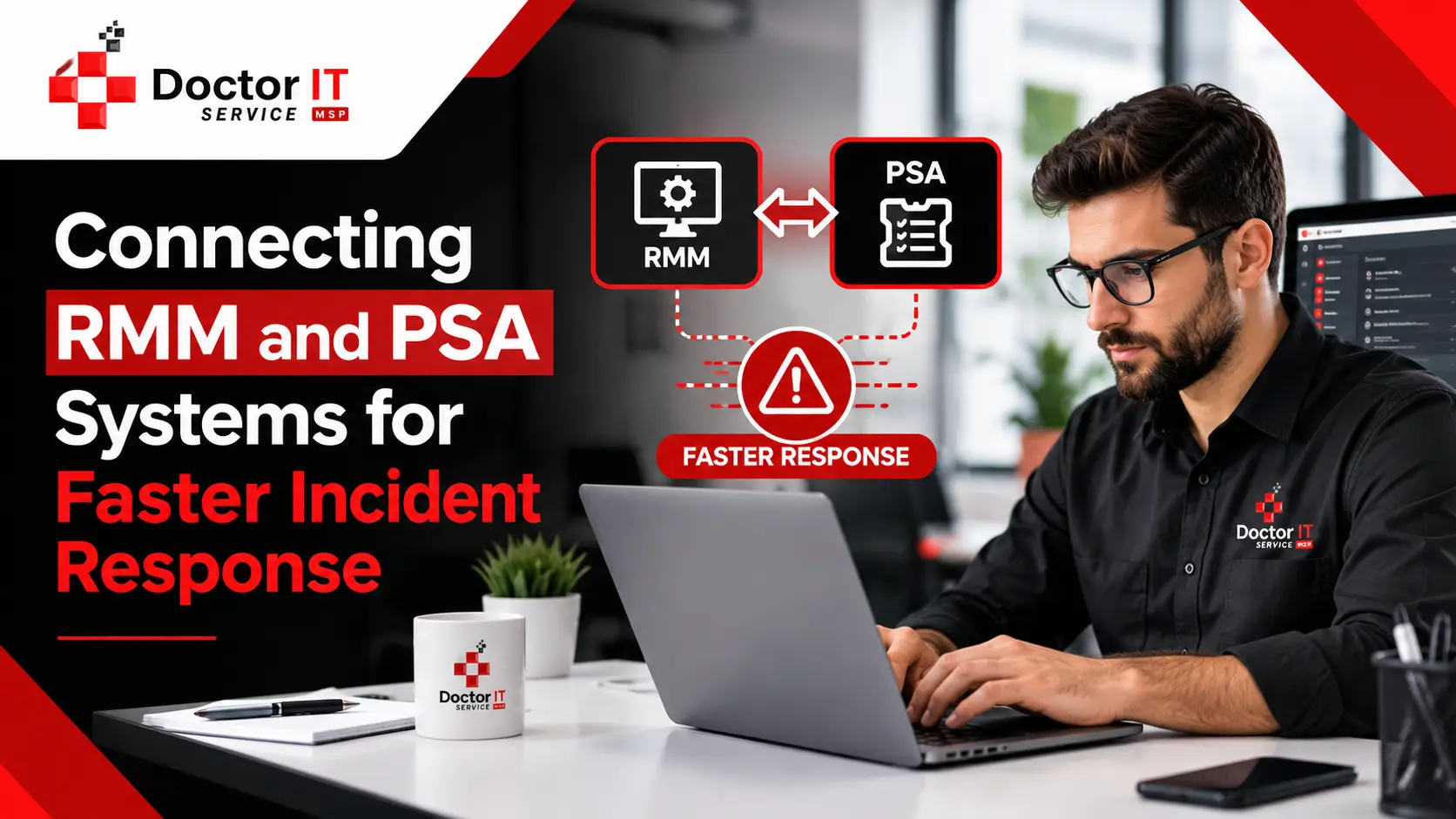
Most IT teams run two tools side by side and never stop to think about what that's actually costing them. One watches system health. The other handles tickets and technician assignments. Keep them separate, and somebody's stuck copying alert details into a ticket by hand. Every time. It's tedious, and it's slow.
Connect the two, and that step just goes away. An alert fires, a ticket shows up, and your team starts fixing the actual problem instead of typing out what's wrong first.
Here's how to actually set that up.
Quick clarification before anything else. RMM software keeps an eye on your systems. Performance dips, security risks, anything that looks wrong across your devices, it catches that.
PSA handles the people side. Tickets, who's assigned to what, deadlines tied to whatever service agreement you've got running.
Neither one replaces the other. Wire them together properly, though, and they stop feeling like two separate headaches.
An RMM platform already running. A PSA or ticketing tool your team's already using. Admin-level API access on both ends. Some comfort with scripting, PowerShell mostly, or someone nearby who has that comfort. And permission to actually test API calls between the two, since you'll need that. Got all that? Good. Here's the actual setup.
A lot of RMM platforms already talk to common PSA tools out of the box. Usually the fastest option, and you skip custom scripting entirely.
Why This Step Is Worth Doing
Good fit if speed matters most. Also, solid if you want high-priority alerts turning into tickets automatically, or routing specific alerts to specific technician groups without building anything from scratch.
Start in your RMM's admin settings. Pick your PSA system off the list, drop in your API credentials.
Then comes the mapping, which is really where all the value sits:
Match alert severity to ticket priority. Set routing based on alert type or device group. Assign certain alerts straight to the right technician queue.
Turn sync on after that. Comments should move between systems, and tickets should close on their own once the alert clears.
Don't just trust it, test it. Fire off a sample alert, check a ticket shows up. Update the alert, see if the ticket updates too. Close it, confirm the PSA follows along.
Sometimes there's no built-in connector. Different RMM, different PSA, no native bridge between them. That's where webhooks and direct API calls step in.
Makes sense if your platforms just don't talk to each other natively. Also gives more experienced teams tighter control over exactly how and where tickets land.
An RMM that supports custom scripts or webhook triggers. A PSA with a documented API. Valid credentials, scoped to allow ticket creation.
A basic script might fire off a PowerShell request to your PSA's ticketing endpoint, passing along which client's affected, which board it belongs on, how urgent the thing actually is.
Hardcoding API keys straight into a script is an easy mistake to make, and a costly one if logs ever get exposed.
Store credentials somewhere secure instead, your RMM's variable storage usually works. Pass them encrypted at runtime. And scope each token tight, ticket creation only, nothing that touches financial data or asset deletion.
A ticket with zero context just slows a technician down. They end up hunting for information that should've been there from the start.
Attach diagnostics automatically, and a technician opens the ticket already knowing roughly what's going on. Saves a step, saves time.
PowerShell can grab live data, say, which processes are hogging CPU right now, format it, and drop it straight into the ticket.
One thing to watch here. Pull CPU data from the wrong command, and you'll get a misleading number, total CPU time since a process launched isn't the same thing as what's happening right now. Use something that captures the real-time load instead. Otherwise, technicians are looking at numbers that don't mean much.
PowerShell isn't everywhere. Plenty of environments still lean on Command Prompt for basic detection work.
Why This Step Is Worth Doing
Older systems, simpler setups, routine checks on things that aren't mission-critical. This method handles all of that fine.
A short command writes a timestamped entry to a local log whenever something looks off, antivirus stopped running, say that.
Your RMM keeps watch on that file. New entry shows up, it triggers an alert or spins up a ticket automatically.
Run the check hourly through a scheduled task, and nobody has to remember to do it manually.
Alerts don't mean much if you can't tell which client or site they're coming from. Registry entries and Group Policy sort that out.
Clean, consistent metadata, client name, site location, makes routing a lot less of a guessing game. Fewer mix-ups between similar-looking tickets.
A registry path can hold client details, customer name, site, whatever you need. Scripts then pull that data and attach it to alerts or ticket descriptions automatically.
Doing this by hand on every machine would take forever, honestly. Group Policy pushes the same registry entries out across a whole group of devices at once, which is the only realistic way to handle it at scale.
A few issues come up again and again during setup.
Wrong API credentials, and the whole integration just stops. Tickets won't sync, full stop. Check tokens first before troubleshooting anything fancier.
Registry entries missing or wrong, and tickets lose their client context. Routing gets unreliable fast. Usually fixed by reapplying the entries through Group Policy or a script.
Scripts failing silently are the sneaky one. A ticket goes out fine, just without any diagnostic data attached, and nobody notices until it's already a problem. Basic logging in the script catches this early, worth adding from the start.
Duplicate tickets pile up fast if the same alert fires more than once. Alert throttling in most RMM platforms handles that.
Tickets landing in the wrong queue happen when mapping's off somewhere. Double-check each alert type actually points to the right technician group or board.
Resolved alerts should close out tickets automatically, too. Skip this, and your dashboard fills with stale alerts that look unresolved even though they're long since fixed.
And don't skip backup failures in your alert rules. Miss one, and you might not know a backup failed until the exact moment you actually need it, which is about the worst time possible to find out.
Tickets not showing up at all? Check whether the API token's expired first. Then check alert filters, and make sure your firewall isn't silently blocking outbound calls.
Ticket fields look wrong or blank? Usually a mismatched payload. Field names like status, board, and priority need to line up exactly with what the PSA expects.
Tickets reopening on their own, over and over? Both systems are probably fighting over who controls the final status. Pick one, usually the PSA, and shut off syncing from the other side.
No diagnostic data showing up? Scripts often need admin rights to actually pull what they're supposed to. Test the script by itself first before wiring it into a live alert.
Connect your RMM and PSA properly, and incident response stops being something you react to and starts feeling almost automatic. Alerts become tickets without anyone typing a word. Technicians open a ticket that already explains what's broken, instead of starting from nothing.
Getting there takes some patience. Mapping rules right, testing thoroughly, keeping credentials locked down properly. But once it's actually running, the time saved adds up fast, and a lot fewer things slip through unnoticed.
If your team's still juggling scattered tools, or tickets keep lagging behind actual alerts, it's probably worth getting this fixed properly. Reach out to Doctor IT Services for help setting up or troubleshooting your RMM and PSA integration. We respond within 60 seconds, bring over 20 years of experience, and keep pricing fair and upfront.
RMM watches your systems for trouble. PSA manages the tickets, technicians, and deadlines tied to fixing whatever trouble shows up.
Not necessarily. A lot of platforms connect natively with no scripting involved. Custom setups do need some comfort with tools like PowerShell, though.
Webhooks or direct API calls fill that gap. Takes more setup, but gives you more control over how tickets get created and routed.
Usually, a mapping issue somewhere. Check that each alert type actually points to the correct technician group or board.
Turn on alert throttling in your RMM. Most platforms have this built in already, it just needs switching on.
Never hardcode them into a script. Keep them in secure storage, and limit each token's permissions to exactly what it needs to do.
Discover our most recent insights and updates from the world of IT
Governments pulled sites offline over two critical PHP flaws. Learn if you’re at risk and how to fix…
Read Article
Comparing the leading Microsoft 365 backup tools for 2026. See features and best-fit use cases before picking one…
Read Article
Discover the real benefits of IT consulting services, from cost savings to better security. Learn why hiring an…
Read Article